
At Splashing with Clashing, we accept payments through EFTs or Cheques.
We avoid cash transactions at the beach or pool as we are often between back to back classes and wet from being in the water. We are, therefore, unable to track who has given cash for which students. Dealing with cash transactions cuts into class time, compromising the quality of the swim instruction we offer.
Paying by Electronic Funds Transfer (EFT)
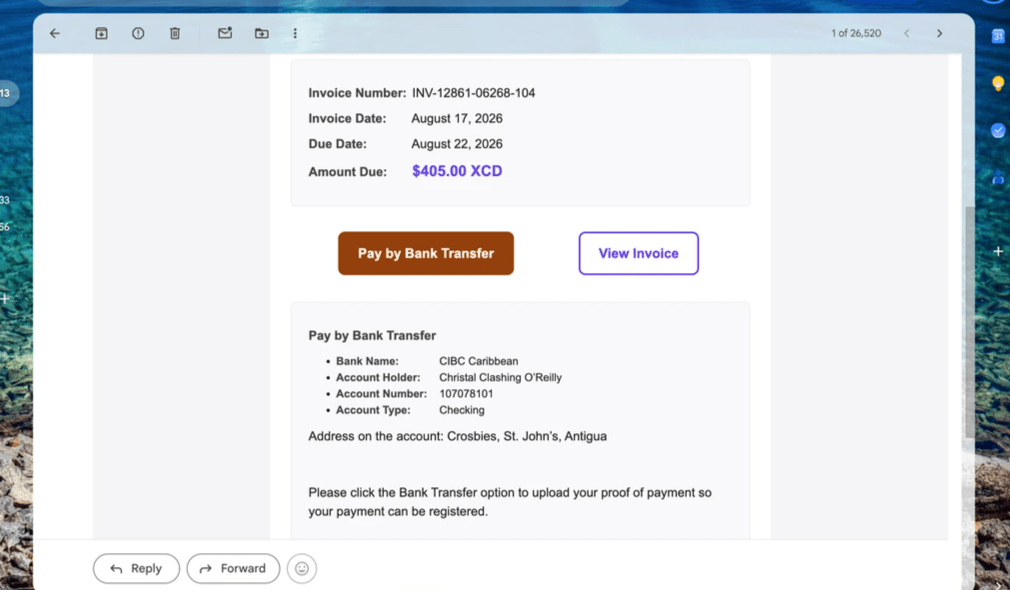
When you recieve your invoice in your email, you can pay the amount indicated through your bank's mobile app (details on how to do so a outlined later in this post).
Please make sure to screenshot or download the confirmation that the EFT has been sent.
You can then upload the confirmation screenshot or PDF to NNERB by clicking on the brown 'Pay by Bank Transfer' button that is shown in your invoice email that comes to your email inbox.
Note that this is the only place you can upload an EFT confirmation screenshot or PDF.
We will then review your submitted confirmation and send a reciept to your email.
You can check your balances on the NNERB portal when you login to www.nnerb.com/client using your username/Google login/Mircosoft login.
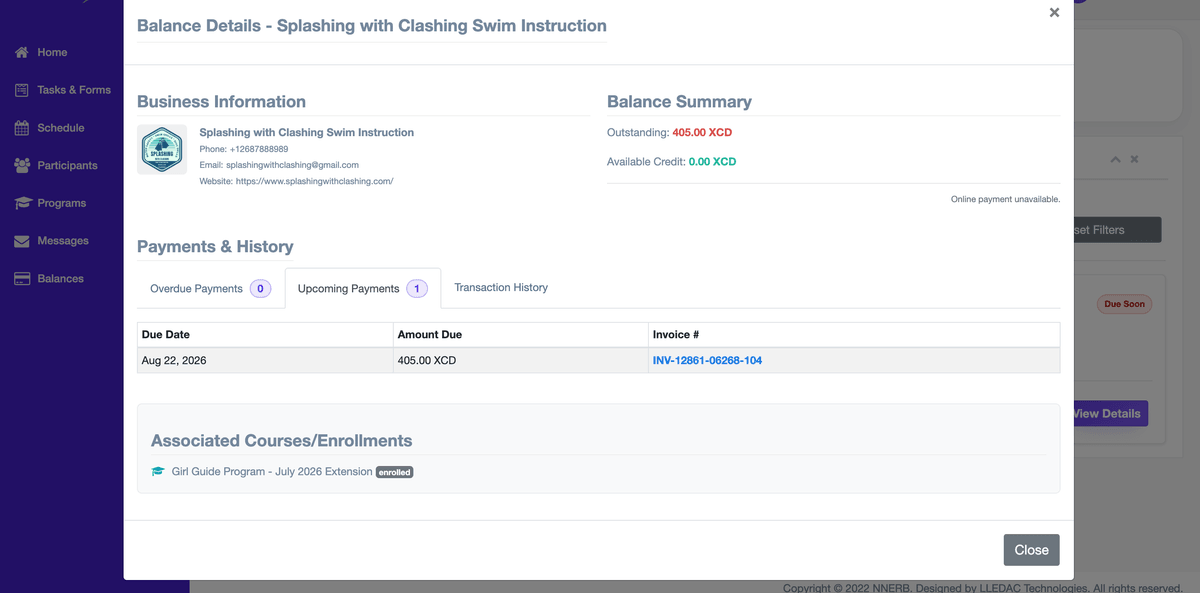
However, as we are still working on getting card payments activated, we not yet have an online payment option through the portal. We can only accept the EFT confirmations from the 'Pay by Bank Transfer' button in the invoice sent to your email.
EFT from ACB Caribbean
To perform an Electronic Funds Transfer (EFT) locally using the ACB Smart app, log in, open the main menu, select Orders, and choose Electronic Funds Transfer to fill out your account info, beneficiary details, and submit.
- Log in: Open and sign into your ACB Smart app using your digital banking credentials.
- Navigate: Open the main menu and select Orders, then tap on Electronic Funds Transfer (EFT).
- Ordering Details: Complete your customer info, select your account and country (note that address fields cannot use punctuation), choose the currency (EC only), and enter the transfer amount.
- Beneficiary Info: Pick the receiving bank from the participating list, then supply the branch codes, routing or SWIFT details, and the beneficiary's customer details.
- Remittance & Options: Fill in the remittance/note field, toggle transaction alerts, or save the recipient details as a template for future use.
- Submit: Carefully review all entered details for accuracy, then click Submit to process the transaction.
Here is the YouTube Video that shows the process:
EFT from ECAB
To perform an Electronic Funds Transfer (EFT) using the ECAB mobile app, log into the MOREBanking platform via the app, open the menu, select Orders, choose Electronic Funds Transfer (EFT), fill in the beneficiary and transfer details in Eastern Caribbean dollars, and submit.
- Open App: Launch the ECAB Mobile App on your phone and sign in with your credentials.
- Open Menu: Tap the main menu icon and go to the Orders section.
- Select EFT: Tap on Electronic Funds Transfer to open the transfer form.
- Enter Details: Fill in your account info, select the currency (XCD), and enter the recipient bank, routing/SWIFT codes, and account number.
- Save Template (Optional): Toggle the save option if you want to store the recipient details as a template for future use.
- Review and Submit: Check all transfer details carefully on the review screen, then tap Submit.
Here is the YouTube Video that shows the process: